OldSnap: foreign-language screenshots, redrawn in your language with the layout intact. Learn more

SharedQuickView 共享速览

Windows shared-path utility Free

Shared paths.
Fewer steps to open them.

A shared-folder link points to the wrong server IP? Set your target IPv4 once, then paste UNC paths to replace the server address and open the complete folder. Process multiple paths together, with optional clipboard automation, URL recognition and local drive paths.

Made by Oldlee. Free and MIT-licensed, with path processing on your PC and no clipboard uploads.

  • Windows 10 / 11
  • x64 · 64-bit
oldleeo.github.io
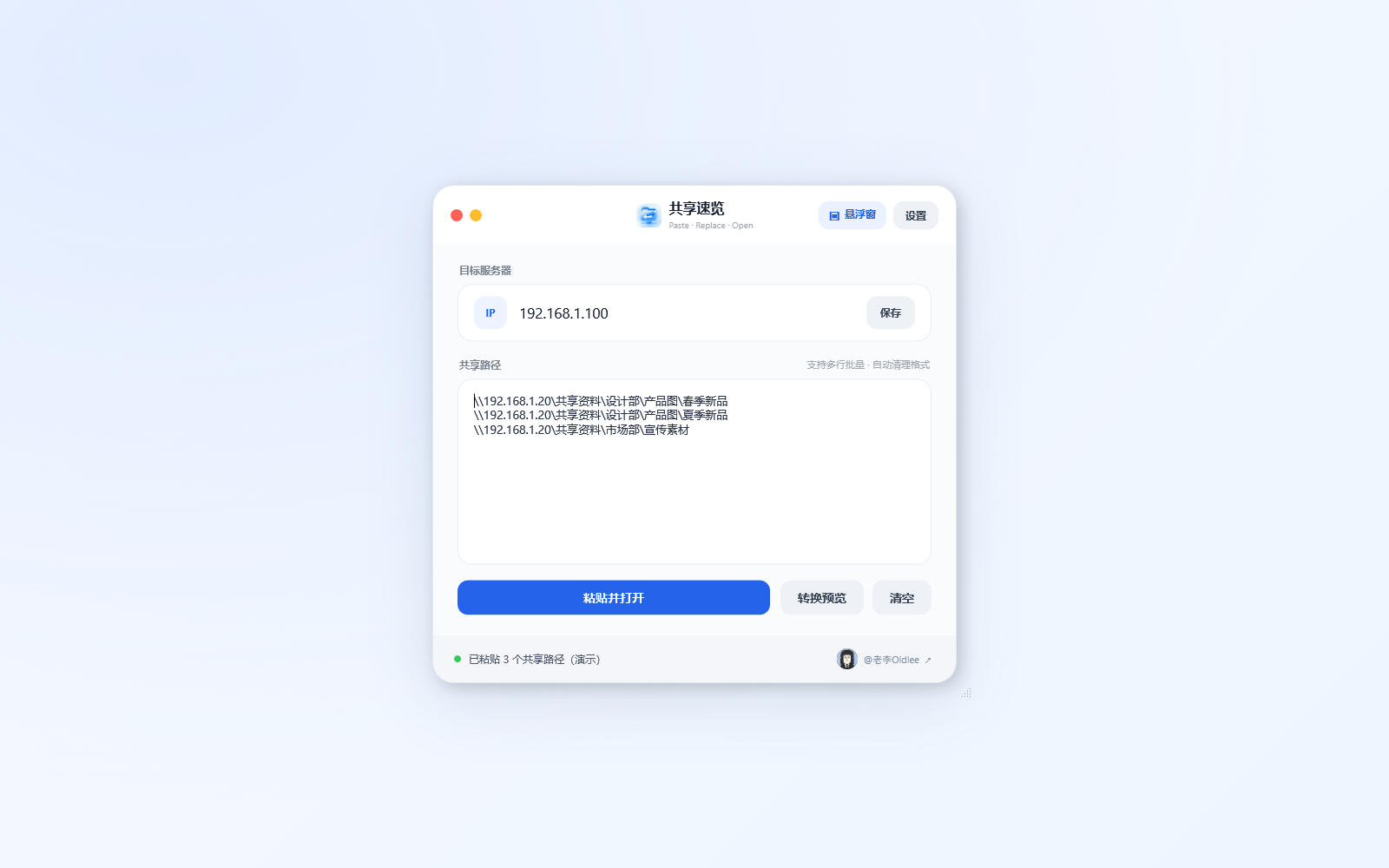
SharedQuickView batch input with target IP 192.168.1.100 and three UNC paths using fictional folders.
01

Replace the server, keep the complete path

Enter your destination IPv4 in Target server and save it. SharedQuickView replaces the server part of a UNC path while keeping the share name, spaces, Chinese characters and subfolders.

For example, \\192.168.1.20\Shared\Design\Spring becomes \\192.168.1.100\Shared\Design\Spring. Windows is asked to open the final Spring folder. All examples are fictional.
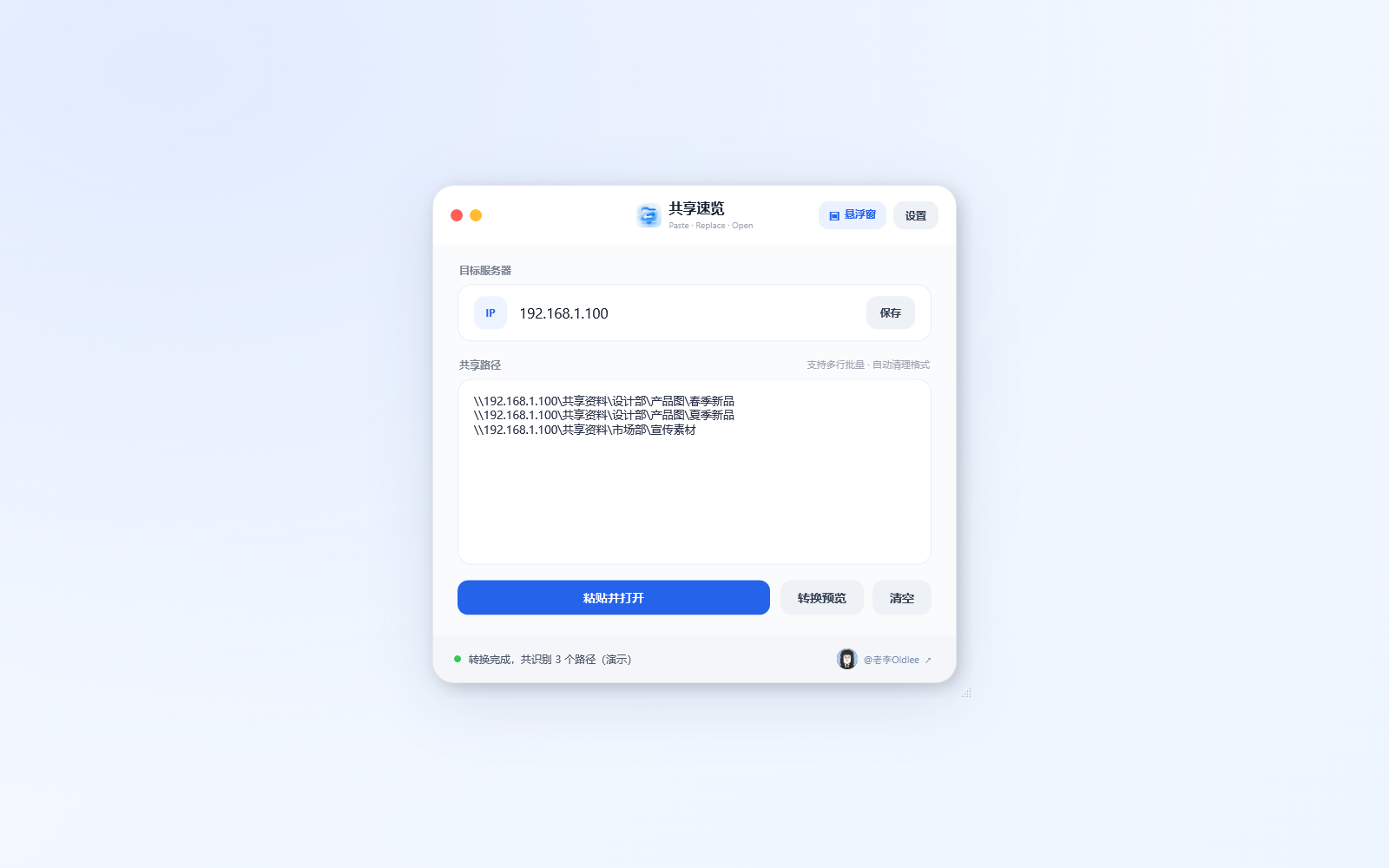
Preview showing three paths converted to the target IP with their final folders preserved.
02

Paste a batch and open it together

Copy multiple paths, one per line. The app counts valid items and removes duplicates after IP replacement. It handles blank lines, extra backslashes, standalone //server/share paths, surrounding quotes and copied HTML spacing.

Confirmation for batches above 20 items is enabled by default. URLs and local paths also count toward that total.

Three shared-folder paths in the batch input area.
03

Get started, or preview before opening

1. Install the Windows x64 package from Releases. 2. Enter and save your target IPv4. 3. Copy a shared path, then select Paste and open or press Ctrl+V in the input area.

Paste and open always reads the current clipboard. Conversion preview processes the input box without opening folders; Clear empties it. To open the same batch after previewing, keep the original paths on your clipboard.

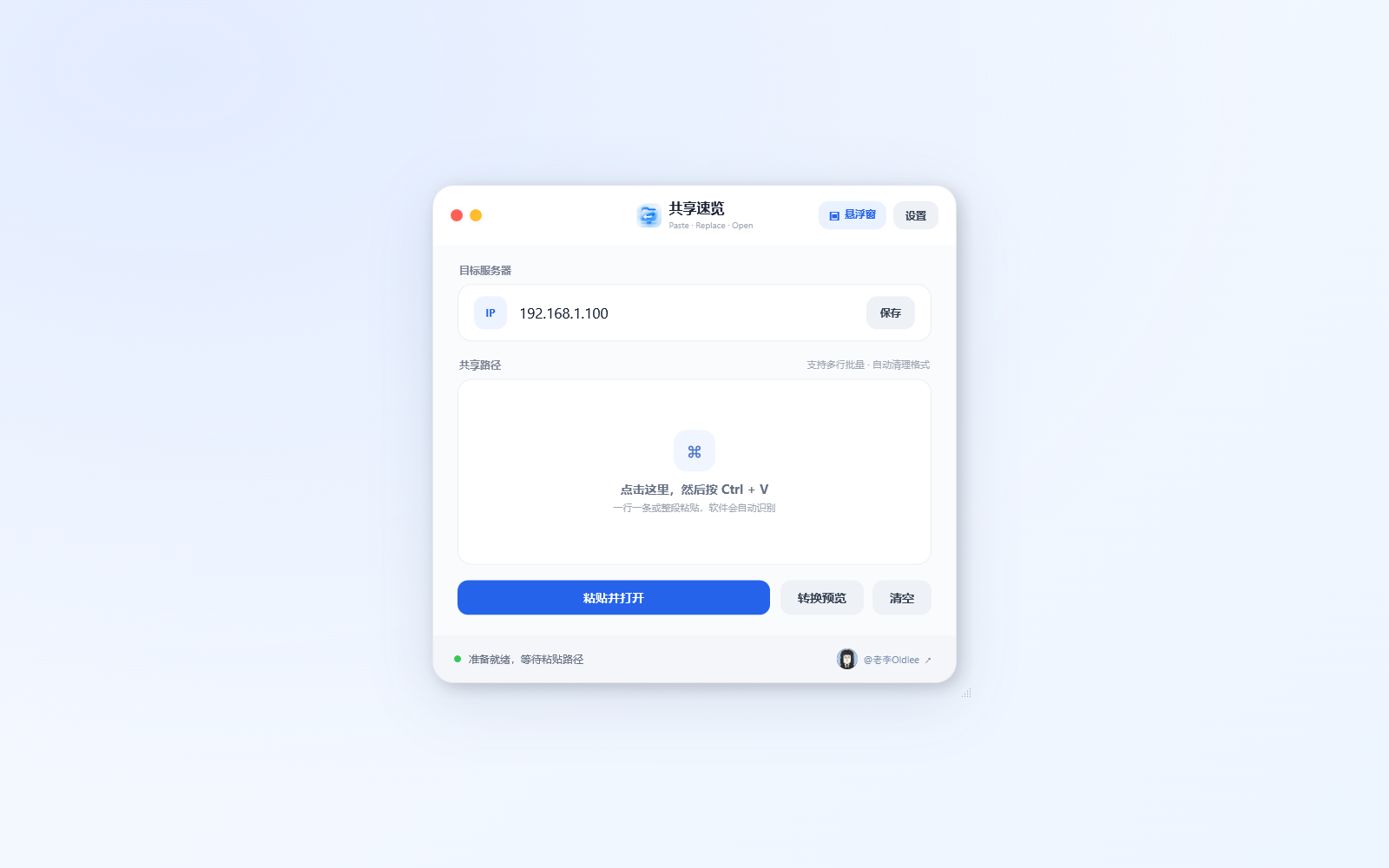
Main window with target server, Save, Paste and open, Conversion preview and Clear controls.
04

Choose whether copying opens paths

Automatic clipboard opening is off by default. Enable it to process newly copied text on this PC without pressing a button. Turn it off or exit the app to stop monitoring.

Opening paths that already use the target IP is a separate switch, also off by default. When off, automatic mode skips those shared paths. Manual pasting is not affected by this same-IP switch.

Settings for clipboard automation and opening shared paths already using the target IP.
05

Open URLs and local paths unchanged

URL recognition and local-drive-path recognition are separate switches, both off by default. URLs support http:// and https://; local paths require a complete drive path such as C:\ or D:\.

Neither has its IP replaced. URLs open in the default browser, folders in File Explorer, and files in their default app. Enable the relevant recognition option for manual pasting; also enable clipboard automation for copy-to-open behavior.

URL and local drive recognition switches, both disabled in this screenshot.
06

A small floating window when you need it

Select Floating window in the main window. Click Paste and open to read the clipboard, or press Ctrl+V while the floating window has focus.

Double-click the three dots or press Esc to restore the main window. Drag an empty area to move it; right-click to paste, expand, open settings or exit. You can also start the app directly in floating mode.

Floating window with Paste and open and the three-dot expand control.
07

Tray access, always on top and startup

The red top-left button hides the app to the system tray, where it keeps running. Yellow minimizes it. Double-click the tray icon to restore the window; the tray menu can read the clipboard or exit.

Choose Windows startup in the installer or settings. Other switches control always-on-top behavior and starting in floating mode. Choose Exit to end background operation.

08

Set what happens after opening

Clearing input after opening is on by default. Collapsing into the floating window afterward is off. Confirmation for batches above 20 items is on. Adjust these in Preferences and select Save settings.

The target IP, window position and preferences are stored for the current Windows user. An opening-request status means Windows accepted the request, not that the server folder was successfully reached.

09

Install location, shortcuts and consent

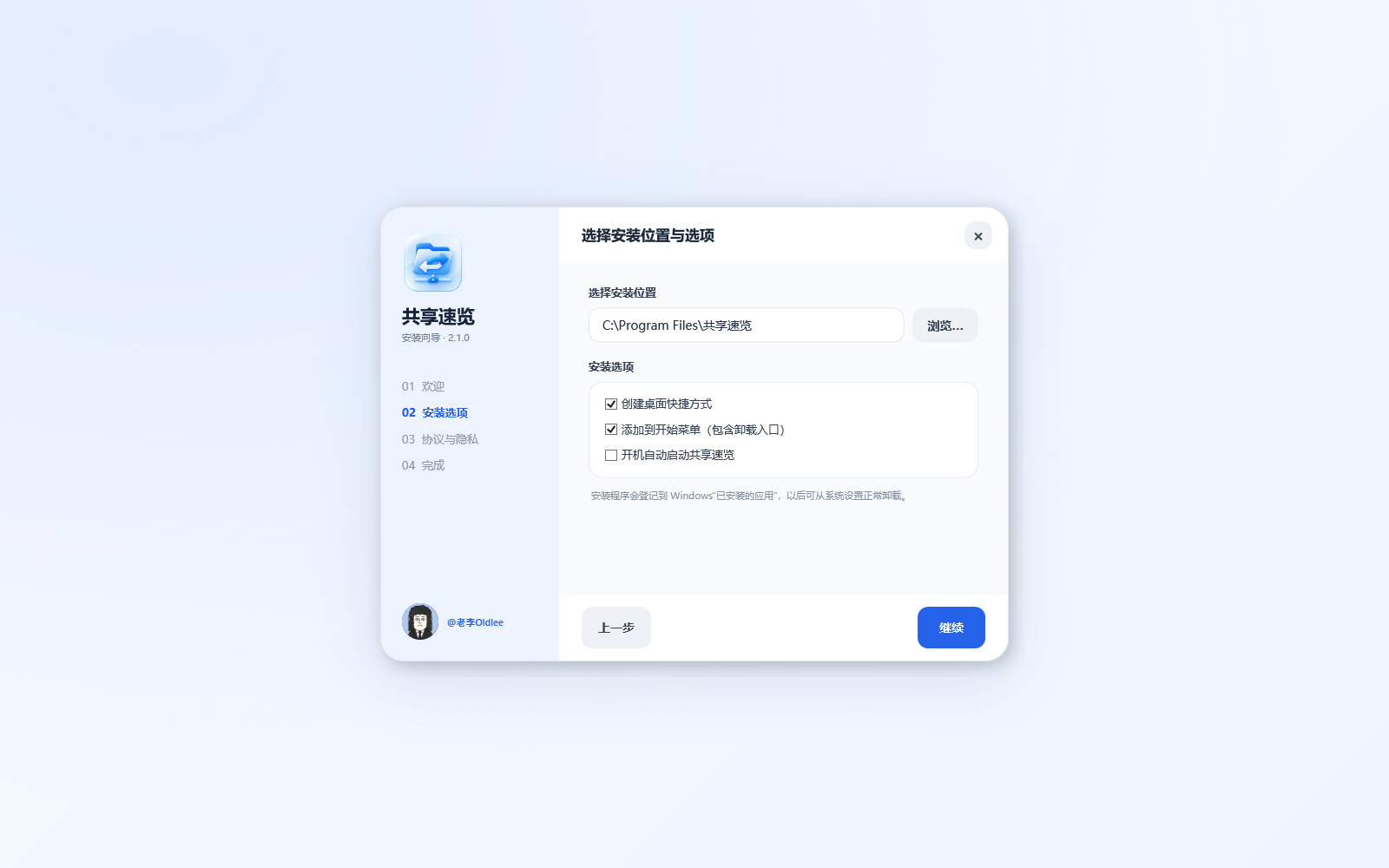
The default folder is C:\Program Files\共享速览; you can choose another location. The installer offers desktop and Start menu shortcuts and Windows startup.

Read and accept the user agreement and privacy policy before installing. Administrator access is needed to install files and register uninstallation. A self-contained single EXE is also available; neither package needs a separate .NET runtime.

Installer showing Program Files, shortcut options and Windows startup.
10

Uninstall, with optional settings retention

Remove the app through Windows Installed apps, the Start menu entry or the uninstaller in its installation folder. The uninstaller attempts to close running SharedQuickView processes.

Choose whether to delete personal settings. Windows delayed deletion may clean up the running uninstaller and its empty folder after the next restart.

Uninstaller with an option to remove personal settings.
11

Local processing and inspectable source

The app uploads no target IPs, shared paths or clipboard text. It has no accounts, ads, analytics SDK, telemetry or automatic updates. It does not index shared folders or modify or delete shared files.

Windows connects to the server when a UNC path opens. Your default browser visits recognized URLs when enabled. Windows and the server handle authentication and logging. The MIT License allows use, modification, redistribution and commercial use while retaining its license and copyright notice.

12

Free, with no feature-unlock fees

The current public release is completely free, with no registration, subscription or paid feature pack. Download the installer or single EXE and inspect the source on GitHub.

Use the official repository for downloads, updates and feedback. Redact real IPs, organization names, internal folders and credentials before reporting a problem.

Specs & requirements

Current release
2.1.0; released September 3, 2026.
System and architecture
Windows 10 / 11, x64 (64-bit). The app UI is currently Simplified Chinese.
Distribution
Self-contained Windows installer and single EXE; no separate .NET runtime required.
Download sizes
Version 2.1.0: approximately 147 MB installer and 73 MB single EXE, in decimal units.
Shared paths
Windows UNC paths. Share names and full subfolders are retained; the target must be IPv4.
Optional recognition
HTTP / HTTPS URLs and complete local drive paths; independent switches, off by default.
Automation defaults
Clipboard and same-target-IP opening are off; large-batch confirmation is on.
Settings file
%AppData%\Oldlee\共享速览\settings.json
Default install folder
C:\Program Files\共享速览; configurable in the installer.
Network requirements
Access to the target SMB server, with the required Windows credentials and folder permissions.
Data and connections
Parsing is local. Windows connects to selected shares; the default browser opens recognized URLs.
Creator and license
Oldlee. Free utility, open source under the MIT License.

What it can’t do yet

Better you know now than after you install it.

  • Windows x64 only. No macOS, Linux, mobile or native ARM64 release.
  • Replaces the server address in shared-path text. It does not change your network adapter IP or provide a VPN, proxy, remote access or network acceleration.
  • Cannot bypass share permissions or repair connectivity, SMB services, server failures or expired Windows credentials.
  • One target IPv4 at a time. No multiple-server profiles, source-based routing rules, IPv6 targets or domain-name targets.
  • Use one path per line for batches. Arbitrary prose or several paths on the same line may not be separated correctly.
  • Does not search, index, synchronize, preview or transfer files inside shares. The product opens paths.
  • An opening request accepted by Windows does not guarantee that the remote folder was reached.
  • No built-in automatic updates, cloud sync or English app UI. This English page translates the product information.
  • Public builds have no commercial code-signing certificate and may show an unknown-publisher prompt. Download from official Releases and verify the checksum.

Pricing

Free, open-source edition

Installer or single EXE, with all current features.

¥0

  • UNC IP replacement and batch opening
  • Optional clipboard, URL and local-path recognition
  • Floating window, system tray and preferences
  • MIT-licensed, commercial use permitted
Download free

The current release is completely free, without registration, subscriptions or feature-unlock fees. MIT permits commercial use and redistribution while retaining the license and copyright notice.

FAQ

Does it change my computer’s IP address?

No. It replaces the server address in UNC path text. It does not change adapters, DNS, routing or proxy settings.

How do I get started?

Download the Windows x64 installer from official Releases. Choose the folder and shortcuts, read and accept the agreement and privacy policy, then install. Save a target IPv4, copy a shared path, and select Paste and open or press Ctrl+V in the input area.

How do I open several folders at once?

Copy one path per line as a batch. The app counts items and removes duplicates. It asks for confirmation above 20 items by default. Make sure each path includes the complete final folder.

Why did copying not open a folder?

Clipboard automation is off by default. Enable it in settings and save. If a shared path already uses your target IP, also enable the option to open same-target-IP paths.

Will an IP inside a URL be replaced?

No. HTTP and HTTPS URLs are excluded from UNC replacement. URL recognition is off by default; enabling it opens the original URL in your default browser. For automatic opening on copy, enable clipboard automation too.

Can I open C: or D: paths and files?

Yes. Enable local-drive-path recognition. Complete drive paths keep their IPs unchanged. Folders open in File Explorer and files in their default apps. Automatic opening also needs clipboard automation. Only open files you trust.

How do I convert without opening?

Conversion preview processes text in the input box without opening anything. Paste and open reads the system clipboard rather than the preview. Keep the original batch on your clipboard to open those same paths afterward.

How do I expand or move the floating window?

Double-click the three dots or press Esc to expand. Drag empty space to move it. Click Paste and open to process the clipboard; right-click for settings or Exit. Ctrl+V requires focus in the floating window.

Why did three paths result in two folders?

Paths that become identical after replacing the IP are deduplicated. Automatic mode may also skip paths already using the target IP. Check duplicates, settings and the end of each path.

Why does a folder fail to open, or stop at its parent?

Use version 2.1.0, check that the final folder was copied, and verify the target IP. Try the converted path directly in File Explorer, then check network access, SMB, credentials and permissions. The app submits the complete path but cannot guarantee the server response.

Why does the red button not exit the app?

It hides the app to the system tray, so clipboard automation may continue. Choose Exit from the tray or floating-window menu to end it. Double-click the tray icon to restore the window.

Where are startup and opening preferences?

Settings controls Windows startup, always on top, starting in floating mode, clipboard automation, same-IP handling, URL and local paths, clearing input, collapsing after opening and large-batch confirmation. Select Save settings after changing them.

Are clipboard text or shared files uploaded?

The app uploads neither clipboard text, target IPs nor shared paths, and does not scan or upload shared files. Windows contacts selected servers. If URL recognition is enabled, your default browser visits those URLs. Servers and browsers may keep their own logs.

How do I uninstall and keep my settings?

Use Windows Installed apps, the Start menu entry or the installed uninstaller. It attempts to close the main app and lets you keep or remove personal settings. The running uninstaller may finish cleaning up after the next restart.

Why is the publisher unknown during installation?

The public build has no commercial code signature. Download from official Releases and verify SHA256SUMS.txt, or build from source. Ask your administrator if organizational security policy blocks it.

May I use it commercially, modify it or redistribute it?

Yes. The MIT License permits free use, modification, copying, redistribution and commercial use while retaining the license and copyright notice. The current release has no registration, subscription or paid unlocks. Created by Oldlee.

Changelog

  1. 2.1.0

    Optional URL and local-path recognition

    • Fixed HTTP and HTTPS URLs being mistaken for UNC paths and having their IPs replaced.
    • Added URL recognition, off by default, opening the original URL in the default browser.
    • Added local-drive-path recognition, off by default, opening paths without IP replacement.
    • Mixed UNC, URL and local-path batches work in manual and automatic clipboard modes.
  2. 2.0.2

    Complete folders, floating window and installer

    • Renamed the app SharedQuickView and opened the final folder in UNC paths.
    • Added batch parsing, deduplication, clipboard automation and same-target-IP control.
    • Added a floating window, double-click expansion, installer and privacy consent.
    • Improved uninstallation and published source and sanitized examples.

SharedQuickView

Shared paths.
Fewer steps to open them.

More from Oldlee