OldSnap: foreign-language screenshots, redrawn in your language with the layout intact. Learn more

OldSnap

Windows screenshots and pinned images

Text you capture,
ready to use.

Press Ctrl + 1 to capture, annotate, copy, save or pin a reference above other windows. Read text locally, then use AI to fix, translate or explain it. Record an area as MP4 or GIF. Capture, annotations, pins, recording and local OCR are free, with no account needed. AI requires an account, internet access and quota. Current stable release: 0.4.0.

  • Windows 10 / 11
  • x64
oldsnap.cc
¥0
Local capture, annotations, pins, OCR and recording
8 chapters
Built-in animated tutorial
2 formats
Record to MP4 or GIF
01

Capture with a shortcut. Snap the selection into place.

Press Ctrl + 1 to freeze the screen, then drag a selection. Hover to snap to a window or an accessible button, image or paragraph; use the wheel to move between parent and child elements. Displays can use different scaling settings. Each selection stays within one display.
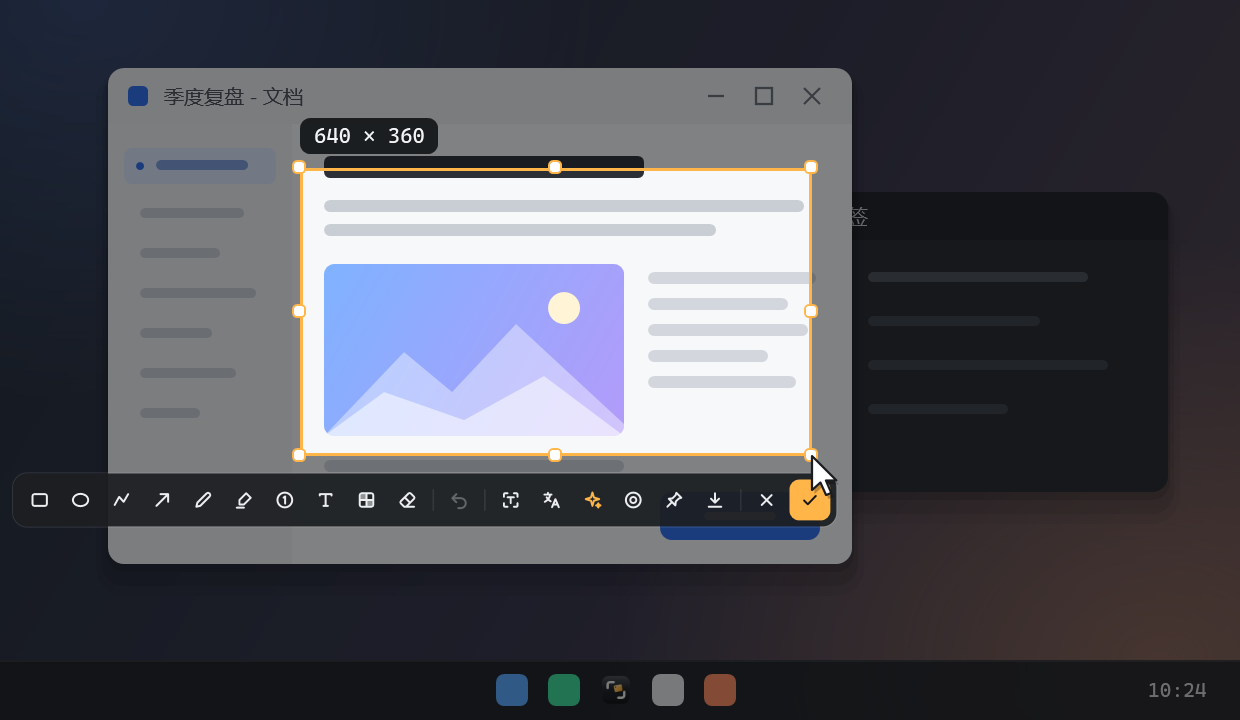
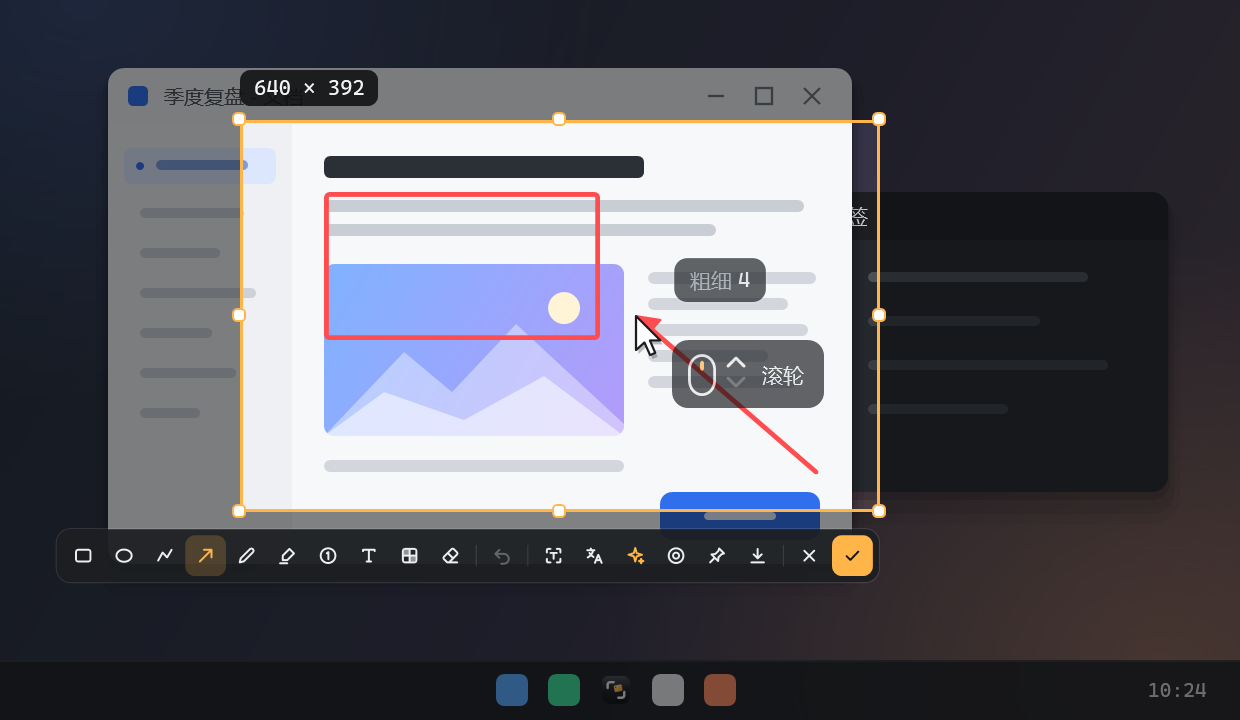
Built-in tutorial illustration: frozen screen, selection and capture toolbar
02

Annotations stay editable

Use rectangles, ellipses, polylines, arrows, pens, highlighters, numbers, text, mosaic blocks and an eraser. Move or reshape a mark, change its color or style, and undo changes. The wheel or [ ] adjusts size; hold Shift for three steps. Each tool remembers its own size, and a stroke can change size while you draw. Mosaic uses pixel blocks rather than blur. Check the covered area before sharing.

Built-in tutorial illustration: rectangles, arrows and wheel-based stroke sizing
03

Read text locally first

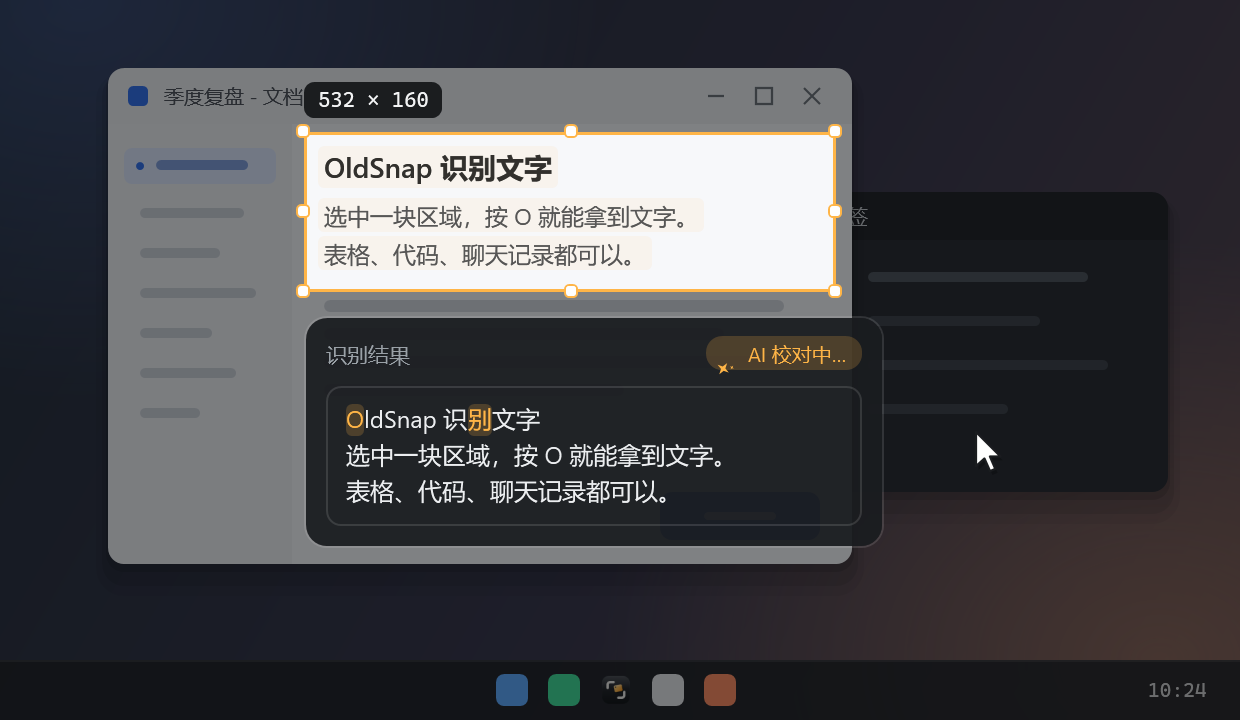
Press O to recognize text in the selection with Windows OCR, or use Ctrl + 4 for quick OCR. Select and copy individual lines. OCR itself works offline. If you are signed in and AI auto-correction is enabled, recognized text is sent to the cloud for correction, with streamed results and highlighted changes.

Built-in tutorial illustration: OCR result panel and AI correction indicator
04

Put translated text back into the capture

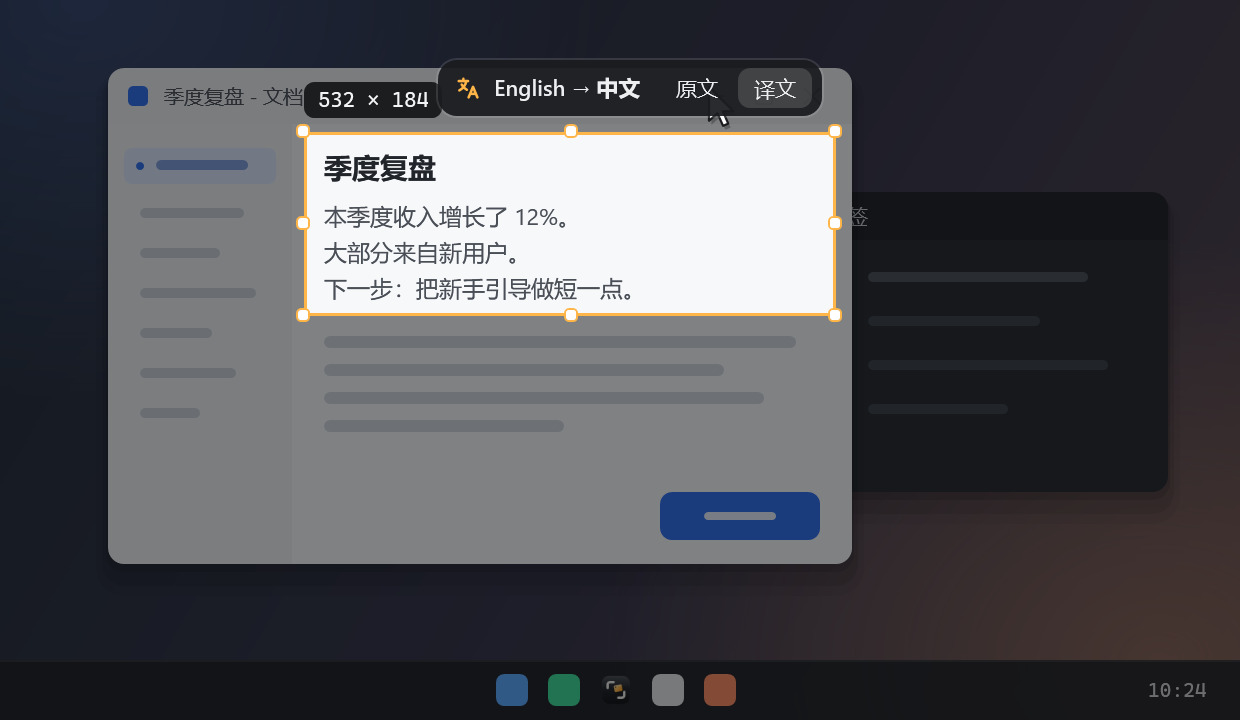
Press Y to translate line by line and overlay the result at the original text positions. OldSnap samples nearby background and text colors to keep the layout recognizable. Switch between original and translated views, or export an image with the translation. Save your target language in Settings. Complex backgrounds, small text and long translations can affect the result.

Built-in tutorial illustration: Chinese translation overlaid on English text
05

Ask about errors, code and longer passages

Summarize, explain, extract key points or draft a reply from recognized text, then ask follow-up questions. Use it to understand an error and outline troubleshooting steps. AI receives text; it does not interpret graphics with no text. Check important answers yourself.

06

Keep a reference above other windows

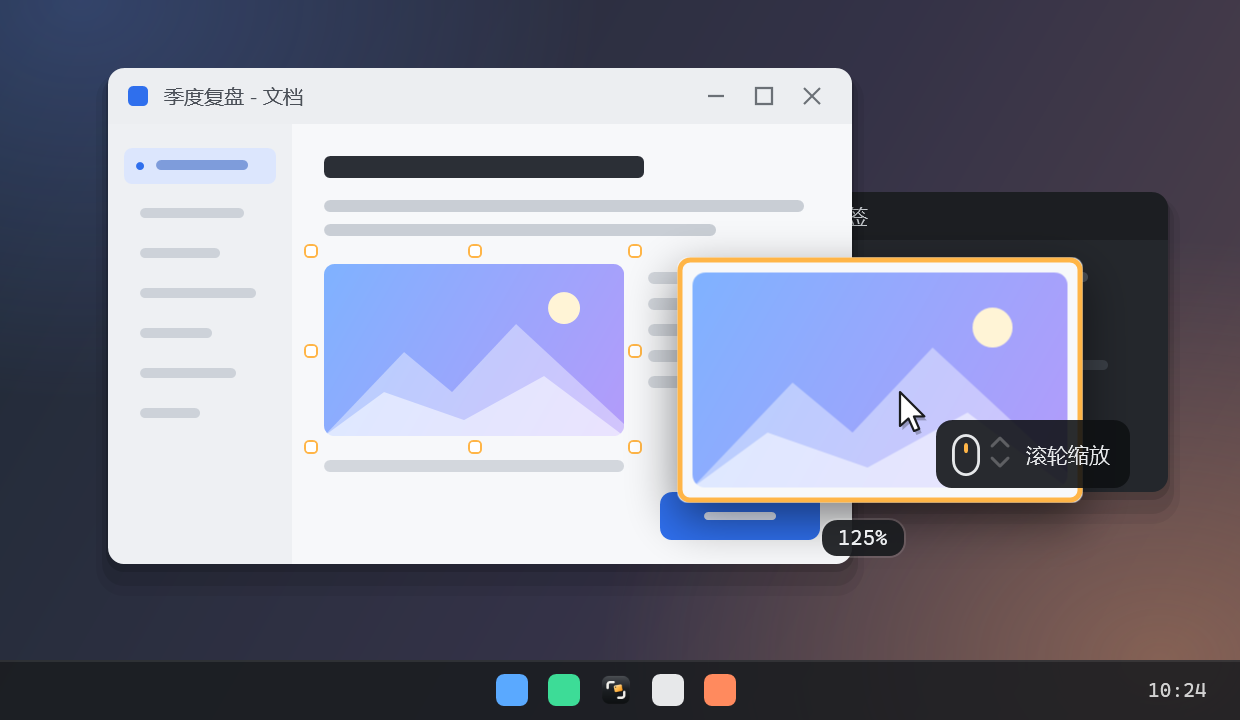
Press F after a capture, or Ctrl + 2 to pin a clipboard image, clipboard text or the last capture. Drag to move it, zoom around the pointer, adjust opacity with Ctrl + wheel, and double-click to close. Pinned images also offer an AI translation action.

Built-in tutorial illustration: always-on-top reference, zoom and opacity controls
07

Record the steps you want to show

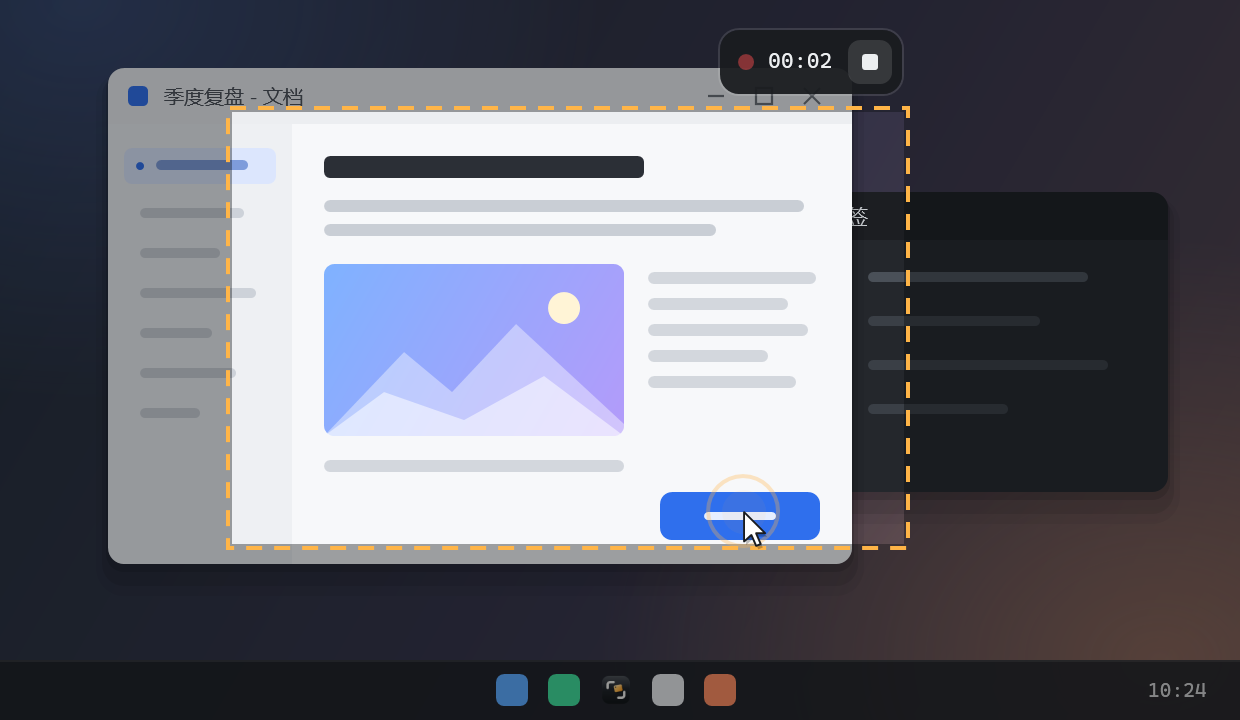
Use Ctrl + 3 to select an area and start recording; press it again to stop. Export MP4 or GIF, optionally with the pointer and click ripples. Pause and resume as needed. Recording currently has no microphone or system audio, and no built-in video editor.

Built-in tutorial illustration: area recording, timer and save action
08

Pick a color or read a QR code

Inspect colors pixel by pixel in the magnifier. Press C to copy a color and Shift to switch HEX/RGB. QR codes in the selected area are detected automatically; choose whether to copy their contents or open a link.

09

Set it up, then learn by watching

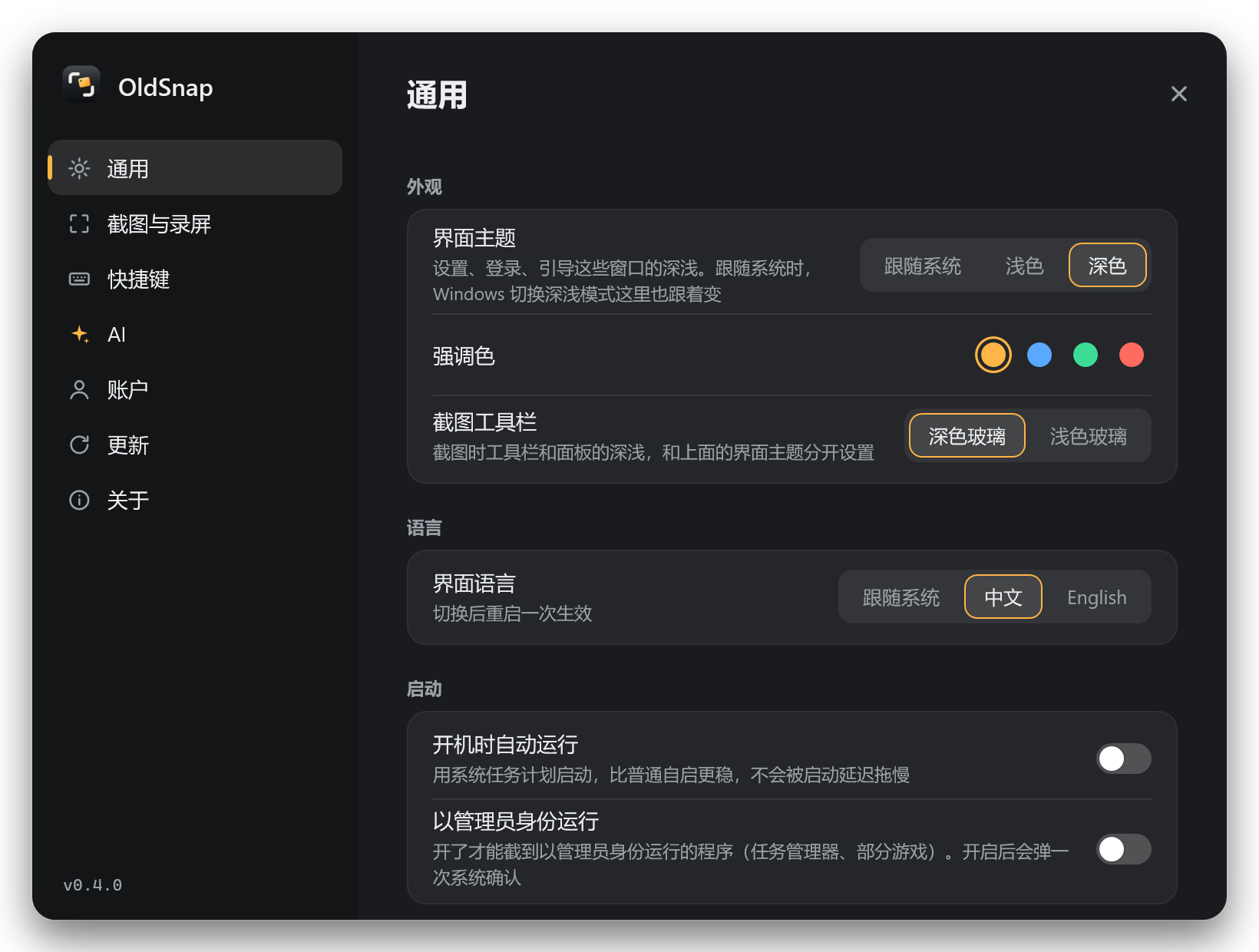
Version 0.4.0 includes installation and uninstallation, plus a portable option. The first-run guide covers appearance, shortcuts and startup, and you can skip steps. Reopen the eight-chapter animated tutorial from Settings. The app supports Chinese and English, system/light/dark themes, and a separate light or dark capture toolbar.

Actual OldSnap 0.4.0 Settings UI: theme, accent color, toolbar and startup options

Specs & requirements

Current release
0.4.0, stable channel
Operating system
Windows 10 / 11, x64. No macOS, Linux or native ARM64 release.
Download
Single EXE, about 91.6 MiB. Includes .NET 8; no separate SDK or Desktop Runtime installation needed.
Installation
Install for the current user or choose portable use. Includes uninstall and signed updates.
Default shortcuts
Ctrl + 1: capture; Ctrl + 2: pin; Ctrl + 3: record; Ctrl + 4: OCR. All can be changed.
Text recognition
Local Windows OCR. Available languages depend on installed Windows OCR language support.
AI input
Recognized text and your questions. Standard text tasks accept up to 8,000 characters. Images are not uploaded as AI attachments.
Recording
Area recording to MP4/GIF, with optional pointer and click ripples. No audio track.
Language and sign-in
Chinese/English app UI. Email code or Google sign-in; an account is required for AI.
Support
Chat: https://t.me/oldleeoo. Email: support@eeoo.dev.

What it can’t do yet

Better you know now than after you install it.

  • Windows x64 only. No macOS, Linux or native ARM64 app.
  • OCR depends on Windows language support. Small text, handwriting, low-resolution images and complex backgrounds can produce errors.
  • Snapping depends on the UI elements an app exposes. Games and custom-drawn interfaces may only expose the whole window.
  • A selection stays within one monitor. Cross-monitor selections and scrolling captures are not supported.
  • AI processes text, not text-free photos or charts, and its answers may be wrong.
  • Translation overlays text; it cannot guarantee an exact reconstruction of complex layouts, backgrounds or fonts.
  • Recordings have no audio track. There is no trimming tool, timeline or video post-production editor.
  • AI needs internet access, sign-in and available quota. Usage counts are estimates; longer text and different tiers consume different amounts.

Pricing

Free

For occasional AI use, or simply capturing, pinning and recording.

¥0Local features are free

  • About 20 AI uses/month
  • 2 signed-in devices
  • Local features work without sign-in
Download free

Pro

Annual: ¥168 / US$24.99. AI quota still resets monthly on an annual plan.

¥19 / US$2.99/ month

  • About 600 AI uses/month
  • Pro tier available
  • 3 signed-in devices
View Pro

Max

Annual: ¥438 / US$59.99. For more frequent text work.

¥49 / US$6.99/ month

  • About 2,000 AI uses/month
  • Pro tier available
  • 5 signed-in devices
View Max

Top-up

About 300 AI uses. Does not expire; used after the current plan allowance runs out.

¥9.90 / US$1.49one-time

  • Available to Free accounts
  • Adds no device slots or Pro access
  • CNY checkout: cards, Alipay and WeChat Pay
View top-up

Local capture, annotations, pins, OCR and recording are free and need no account. AI quota is deducted by actual usage; counts are estimates. Device limits apply to account sign-ins. CNY and USD are separate prices; the checkout is authoritative. Live Stripe payments are enabled. Manage subscriptions from your account; cancellation takes effect at period end.

FAQ

What can I use without paying or signing in?

Capture, editable annotations, pins, color picking, QR recognition, local OCR and recording. AI correction, translation and chat require sign-in. Free accounts get a small monthly AI allowance.

Are screenshots uploaded?

Local capture, pins, annotations and OCR do not upload screenshot images. AI sends recognized text and your questions. If you are signed in with auto-correction enabled, OCR results are also sent automatically for correction. You can turn this off in AI settings.

Do I need an API key or a separate .NET installation?

No. Sign in to use your OldSnap AI allowance. The official 0.4.0 single-file download includes the .NET 8 runtime.

Does translation permanently change the app I captured?

No. Translated text is placed over a frozen screenshot. Switch views or export the translated image; the original application is not modified.

Why is a language missing from OCR?

Windows OCR uses the language support installed on this PC. Add the relevant language in Windows and try again. Image quality, small text and layout also affect recognition.

Are 600 uses a fixed allowance?

No. Quota is consumed by actual AI usage. Input length, answer length and tier affect consumption. Counts such as 600 or 2,000 are estimates.

How do annual plans and top-ups work?

Annual subscriptions still reset AI quota monthly. A top-up is a one-time purchase and adds no device slots or Pro access. It is used after the current plan allowance is exhausted, and unused top-up quota does not expire.

Where do I cancel, change my card or find invoices?

Sign in at oldsnap.cc/account and choose Manage subscription and invoices to open Stripe's customer portal. Cancellation takes effect at the end of the current billing period.

What do the pictures and animation show?

The General and shortcut screenshots come from the actual 0.4.0 UI. The 16-second hero animation and images marked Built-in tutorial illustration come from the app's tutorial. They are illustrative scenes, not a live desktop recording or a guarantee of results.

How can I get help?

Chat: https://t.me/oldleeoo. Email: support@eeoo.dev. Include your version, steps to reproduce the issue and any error message.

Changelog

  1. 0.4.0

    Installation, first-run guidance and eight tutorial chapters

    • Includes a per-user installer, uninstaller and portable option.
    • Adds first-run guidance, eight animated tutorial chapters and system/light/dark themes.
    • Keeps the Settings navigation fix and preserves the startup choice made during installation.
    • Published to the stable channel as an optional update.

OldSnap

Text you capture,
ready to use.

More from Oldlee