SharedQuickSearch 1.10.0: new versions now install themselves
SharedQuickSearch 1.10.0 shipped on October 20 with signed online updates: background downloads, installs only after the checks pass, and rollback if an install fails. Plus 1.9.0's collection tray, folder thumbnails and current limits.
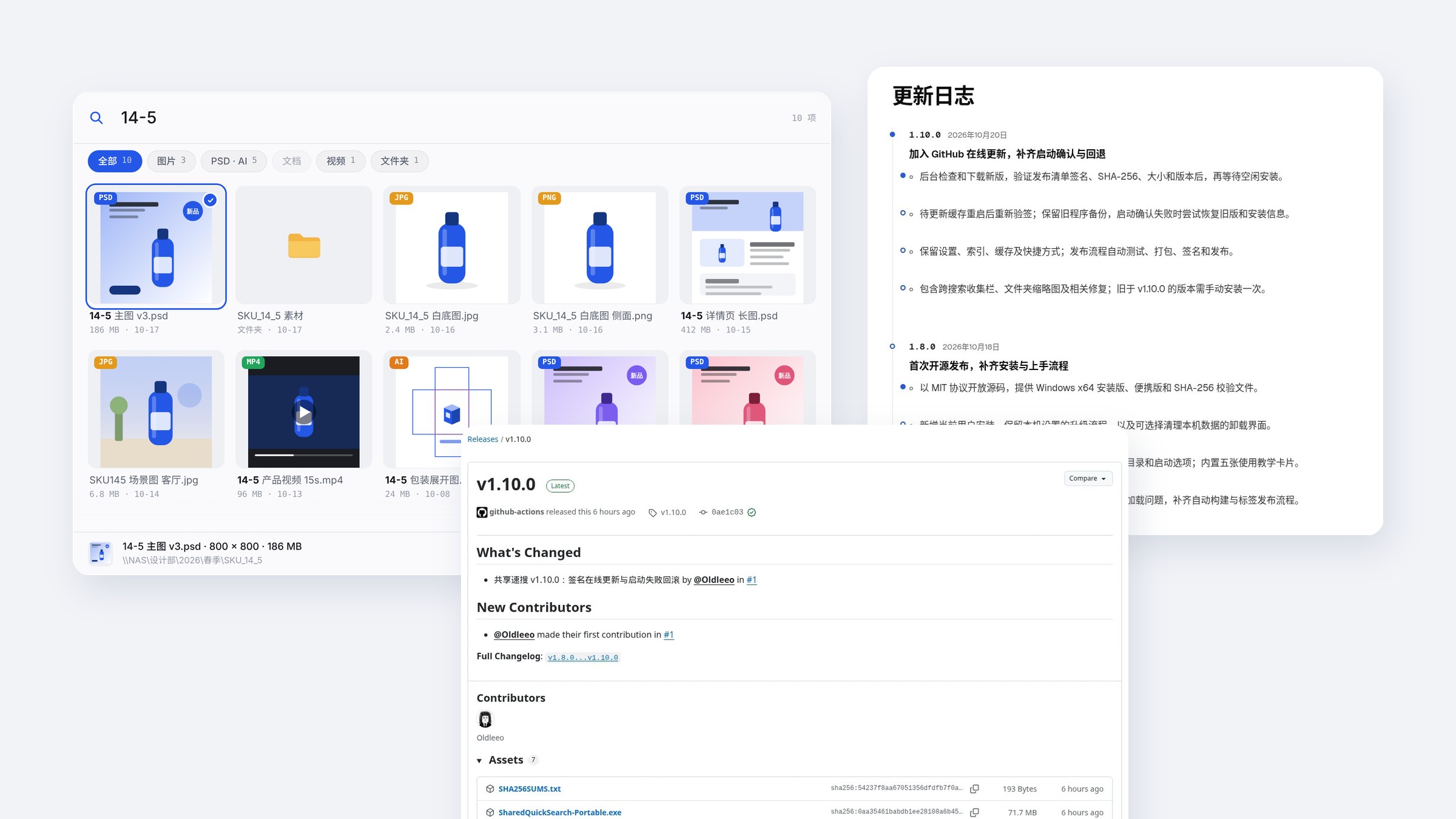
SharedQuickSearch 1.10.0 shipped on October 20. The main change: from now on, when there's a new version, the app downloads and checks it in the background, installs it when you're not using it, and switches back to the old version if the install fails. Versions older than 1.10.0 don't have this, so you'll need to install 1.10.0 by hand once.
SharedQuickSearch is a free, MIT-licensed Windows tool for finding files on a NAS or shared drive by SKU, file name or pinyin. 1.8.0, released on October 18, was its first open-source version on GitHub. 1.9.0 came in between with a collection tray and folder thumbnails but never got a post of its own, so we cover it here too.
| Version | Date | Main changes |
|---|---|---|
| 1.8.0 | October 18, 2026 | First open-source release; install and uninstall screens, first-run setup, 5 tutorial cards |
| 1.9.0 | — | Collection tray across searches, folder thumbnails, fix for file names with full-width slashes |
| 1.10.0 | October 20, 2026 | Signed online updates, startup confirmation, rollback on failure |
1.10.0: downloads in the background, installs when you're idle
Until now, every new version meant downloading the installer again, sending it to coworkers and installing it machine by machine. SharedQuickSearch is often used on several computers in the same team, so that adds up fast. 1.10.0 lets the app handle it.
- When it checks. Once 20–110 seconds after launch, then every 3 hours. The timing is randomized, so a whole team switching on at 9am won't all download at once.
- Downloads in the background. Search keeps working while it downloads. The package is checked as soon as it arrives and thrown away if it fails. After 2 failures with the same package, it stops downloading it.
- Installs only when you're not using it. The search bar has to be collapsed, the collection tray empty, nothing being dragged and the settings window closed. It will also install after 10 minutes away from the computer. It never restarts on its own while the collection tray has items in it, because the tray isn't saved to disk.
- Comes back the way you left it. A small card appears in the bottom-right corner and the app reopens a few seconds later. Settings, index, thumbnail cache, shortcuts and launch-at-startup are all kept.
Why it's signed, and what happens if an install fails
Two things can go wrong with auto-updates: installing a package someone has tampered with, or getting halfway through and leaving an app that won't open. 1.10.0 adds a safeguard for each.
If someone edits the update files on GitHub or on the shared drive, they can't sign them without the private key, and every computer will reject them.
- Signature first. The update manifest update.json must come with the publisher's signature, update.json.sig. The public key used to verify it is built into the app.
- Then three more checks. Once the installer is downloaded, its size, SHA-256 and the version inside the package all have to match. If any of them don't, it isn't installed.
- Checked again on restart. A package that has been downloaded but not yet installed is verified again after a restart. The app doesn't trust the version and hash in its local state file, since that file can be edited.
- Roll back on failure. The old program is backed up before it's replaced. The new version has to pass a startup confirmation; if it can't, the old program and install info are put back. If the same version fails 3 times in a row, the app waits 24 hours before trying again.
The release side changed too. When a version tag is pushed, the pipeline generates and signs update.json automatically. If the tag doesn't match the app's version number, the signing key is missing, or the key doesn't match the public key in the app, the release fails outright instead of shipping a version every computer would reject.
If your office network can't reach GitHub
The default update source is GitHub Releases. If GitHub is slow on your company network, you can point the update source in Settings → About to an update.json on your own server or on the shared drive. Running the build script build.ps1 with -UpdateUrl generates that file. Wherever the source lives, the signature check still applies.
If you run the portable version straight from the shared drive, it updates too, but the new version is installed on the local machine and the copy on the shared drive is left alone, so one computer's update doesn't affect everyone else.
Update requests only fetch the manifest, its signature and the installer. They don't send your files, file names, paths or searches. The index and settings still live only in each computer's own user folder.
Catching up on 1.9.0: the collection tray and folder thumbnails
When you're putting together a product page or a set of images, you often need a few files from each of several SKUs. Before, you had to search and drag one SKU at a time. 1.9.0 added a collection tray.
- Middle-click to collect. Middle-click a card, or select it and press Ctrl + D, and it goes into the collection tray below the search panel. Search another SKU and keep collecting; the tray stays.
- Take them all at once. Click "Copy N" to put them on the clipboard, or hold "Drag out all" and drop them on the desktop, a folder or a chat. Like normal drag-out, it only copies; the originals on the shared drive aren't touched.
- Clearing can be undone. Press Ctrl + Z within 15 seconds of clearing to bring the items back. The tray empties when the app quits, so it isn't a place to keep favorites.
- Folder thumbnails. Folders are no longer just a yellow icon. They show up to 3 of the most recently modified images or design files inside, with a count of files and subfolders underneath. This uses the local index and existing thumbnails, so Windows doesn't have to crawl the shared drive. Videos and Office files aren't used.
1.9.0 also fixed an old bug: files whose names contained a full-width slash (/ or \) had their paths worked out wrong, so opening, copying or dragging them said the file might have been moved. After upgrading, the first background check runs a full scan and adds those files back to the index.
What it still can't do
- Still Windows 10 / 11 64-bit only. No macOS, mobile or browser version.
- It searches file names and paths, not file contents. No OCR, similar-image search or duplicate detection. For Chinese characters with more than one reading, pinyin search uses only the most common one.
- Whether PSD, AI, PDF, Word and video files can be previewed, and how well, depends on the file and on Windows components. It's not a replacement for the original apps.
- Each computer builds its own index; there's no central index service yet. SMB change watching isn't perfectly real-time, so you may sometimes need a manual full refresh.
How to get 1.10.0
- New to it: download the Windows installer from the SharedQuickSearch product page, then paste your shared drive path during first-run setup.
- On a version older than 1.10.0: download and install it once by hand. Installing over the old version keeps your settings, index and cache.
- Want to verify the download: the GitHub release page also has the portable version, the source code and SHA256SUMS.txt.
From 1.10.0 on, you won't need to install new versions by hand. The full version history is at the bottom of the product page and in CHANGELOG.md in the GitHub repo.