From the shared drive to the client: how many windows one image passes through
Not a release note, just an afternoon: a path that won't open, a file you can't find, a PSD too big to send, client changes, and a link at the end. Six Oldlee tools each take a leg, and they don't talk to each other.
A product image has to pass through quite a few windows on its way from the shared drive to the client. The path won't open, the file can't be found, the PSD is too big to send, the client circles three things to fix, and at the end they still want a link they can actually open. No single step is hard. The switching back and forth is what wears you down.
This one isn't about a new version. It's about how a few Oldlee tools hand off to each other over an afternoon like that. To be clear up front: they are separate apps. They don't pass data to each other and there's no master switch. "Working together" just means each step has something handy waiting for it. What follows is a common workflow in design and e-commerce teams; the paths and codes in the examples are made up.
The path won't open: SharedQuickView
A colleague drops \\192.168.1.20\Shared\Design\Spring into the group chat. Your computer reaches the server at a different address, so when you paste it, File Explorer just spins.
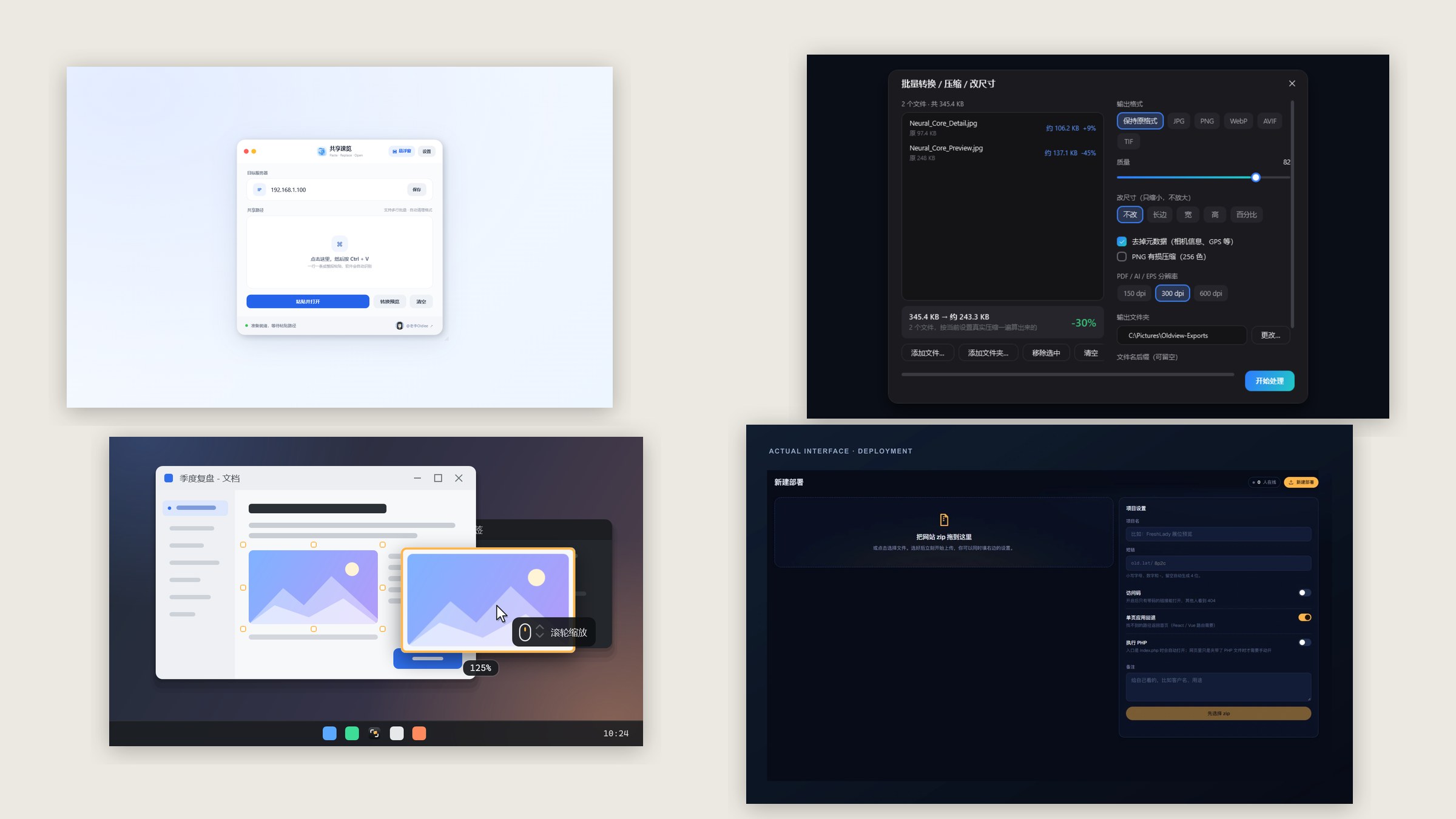
SharedQuickView does one thing: it swaps the server address at the start of the path for the IPv4 you've set, and keeps the share name, Chinese characters and subfolders exactly as they were. Paste, open, and you land right in the "Spring" folder. You can paste several paths at once; duplicates after conversion are dropped. Clipboard auto-detect is off by default, so whether copying should open things is your call.
Can't find the file: SharedQuickSearch
Now you're in, and the problem changes: thousands of folders, and somewhere a white-background shot for SKU 14-5.
Press Ctrl + Alt + Space and type 14-5. Files named 14_5 or 145 turn up too, because spaces, dashes, underscores and dots are ignored. If you can't remember the name, type pinyin: bdt finds 白底图 (white background), zhutu finds 主图 (main image). Results come back as thumbnails. Press Space to look closer, select and drag out: it's a copy, the original on the share stays put. That's SharedQuickSearch.
It searches file names and paths, not file contents, and it can't search by image. The first index takes a while, depending on how many files you have and how fast the NAS is.
Too big to send: Oldview
Found it: a PSD a few hundred megabytes in size, with a set of camera RAW files next to it. The client only wants to see how it looks.
Oldview opens the flattened PSD, RAW files and multi-page PDFs straight away, without waiting for design software to start. To send them, drag the whole folder into batch processing, convert everything to WebP or JPG and cap the long edge; it estimates each file's size before you start. Even quicker: right-click in File Explorer and shrink the long edge to 1920. The new file lands next to the original, which stays untouched.
It can't show layers, only the flattened image, and it exports in 8-bit color. To actually work on layers, you still go back to your design app.
The client wants changes: OldSnap
The client replies with a screenshot: three red circles and a paragraph of English.
With OldSnap, press Ctrl + 1 to capture it, then F to pin it on screen. Make it semi-transparent, park it beside your design and work through the fixes one by one. If the English is unclear, press Y and the translation sits right where the original text was. When you're done, Ctrl + 3 records a GIF to send back, which shows what changed faster than a long message.
Screenshots, annotation, pinning, screen recording and local text recognition are free with no sign-in. AI features like translation need an account, a connection and credits. Recordings have no audio for now.
Writing back: Miaoyu
Now you have to reply to the client on WeChat. It's the third round, so you don't want to sound impatient, and you don't need to grovel either.
Miaoyu floats next to WeChat for Windows, reads the conversation it can currently see plus your half-written draft, and offers three versions. Too polite? Tell it "be more direct." When you've picked one, click Replace to put it in the draft box. Sending is still your button. It doesn't vouch for names, times or amounts, so check them before you send.
Handing over a link: Old.lat
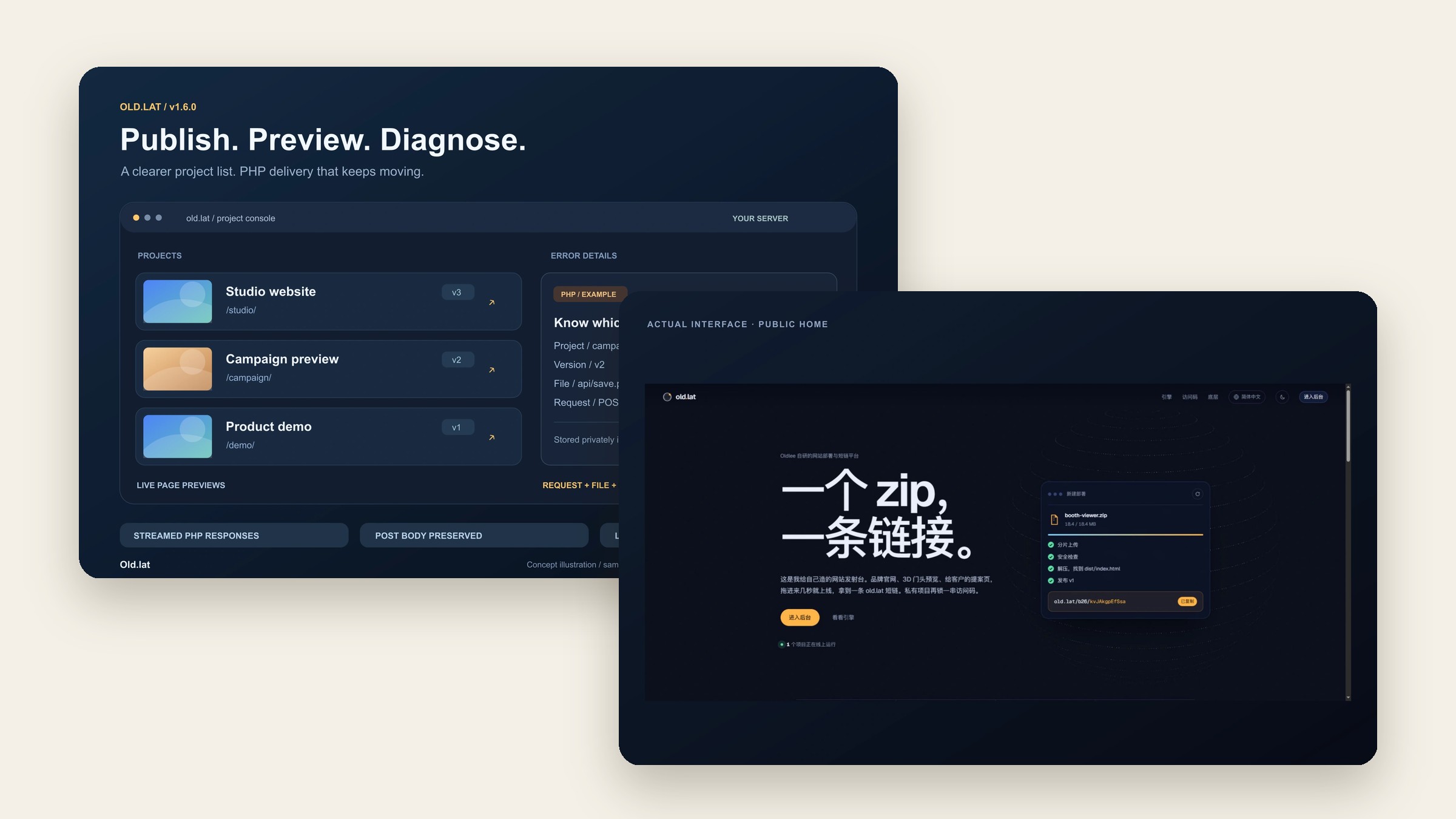
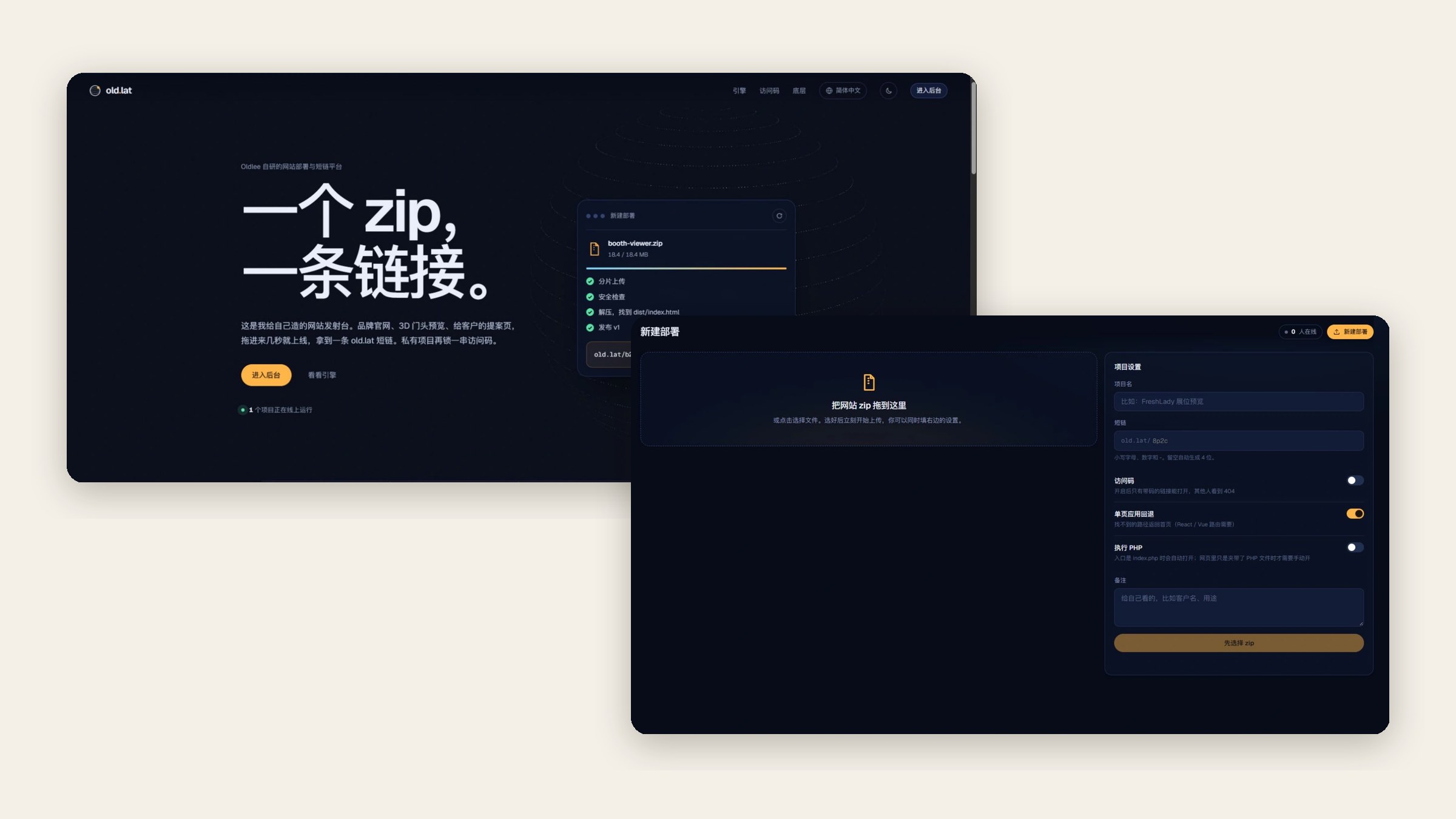
Sometimes the deliverable isn't an image but a web demo. Old.lat turns a website ZIP into a link on your own domain. You can add an access code; when you update, you publish a new version and the link stays the same. Who opened it and how long they stayed is recorded on your own server.
It isn't open for sign-up. It's full source delivery or private deployment for companies and studios, quoted per project. If you only send a few images now and then, the earlier steps are enough.
| Step | Tool | Price |
|---|---|---|
| Open a shared path | SharedQuickView | Free, MIT open source |
| Find assets | SharedQuickSearch | Free, MIT open source |
| View, compress, convert | Oldview | Free |
| Capture, annotate, pin, record | OldSnap | Local features free, AI uses credits |
| Reply on WeChat | Miaoyu | 7-day trial for new accounts, then paid plans |
| Publish a web demo | Old.lat | Quoted per project |
One afternoon, six windows, and none of them tries to decide for you. You give the path, you pick the file, you judge what to change, you send the words. All they do is take out the spinning, the digging and the waiting in between, so your energy goes to the parts that actually need thinking.