Oldview is out: a free image viewer for Windows
Oldview shipped on October 20. It's free and needs no account. Images, PSD, compatible AI files, camera RAW and multi-page PDFs all open in one window, and you can crop, compress, convert and batch-process too. Here's what it does and what it can't.
Oldview shipped on October 20. It's a free download with no account and no subscription. It's an image viewer for Windows: everyday image formats, PSD/PSB, compatible AI files, camera RAW and multi-page PDFs all open in the same window. When you need to crop, compress, convert or batch-process, you don't have to open another app.
We released 0.4.0 and then 0.4.1 on the same day, so the current download is 0.4.1. There's an installer and a portable version you just unzip, with the same features.
| Item | Details |
|---|---|
| System | Windows 10 / 11, 64-bit x64 |
| Current version | 0.4.1, October 20, 2026 |
| Download | Installer about 152 MB, portable ZIP about 83 MB |
| Price | Free, no account, no subscription |
| Processing | Viewing, editing and compression all happen on your computer |
Design files, photos and PDFs in one window
Design work means jumping between a PSD, a PDF from a client and a HEIC photo from a phone. Oldview is meant to open all of them directly.
- Formats. JPG, PNG, WebP, AVIF, HEIC, GIF, TIFF, PSD/PSB, PDF, AI files with PDF-compatible content, SVG and many camera RAW formats. Unusual variants may not all open.
- Browsing and zoom. Drag files in, use the arrow keys to move between images, scroll to zoom, or switch to actual pixels. Neighboring images are preloaded in the background.
- Multi-page PDF. Scroll continuously or view one page at a time. Unedited PDFs and compatible AI files re-render the visible area at screen resolution when you zoom in.
- Multi-page TIFF can be viewed page by page.
See the file size before you compress
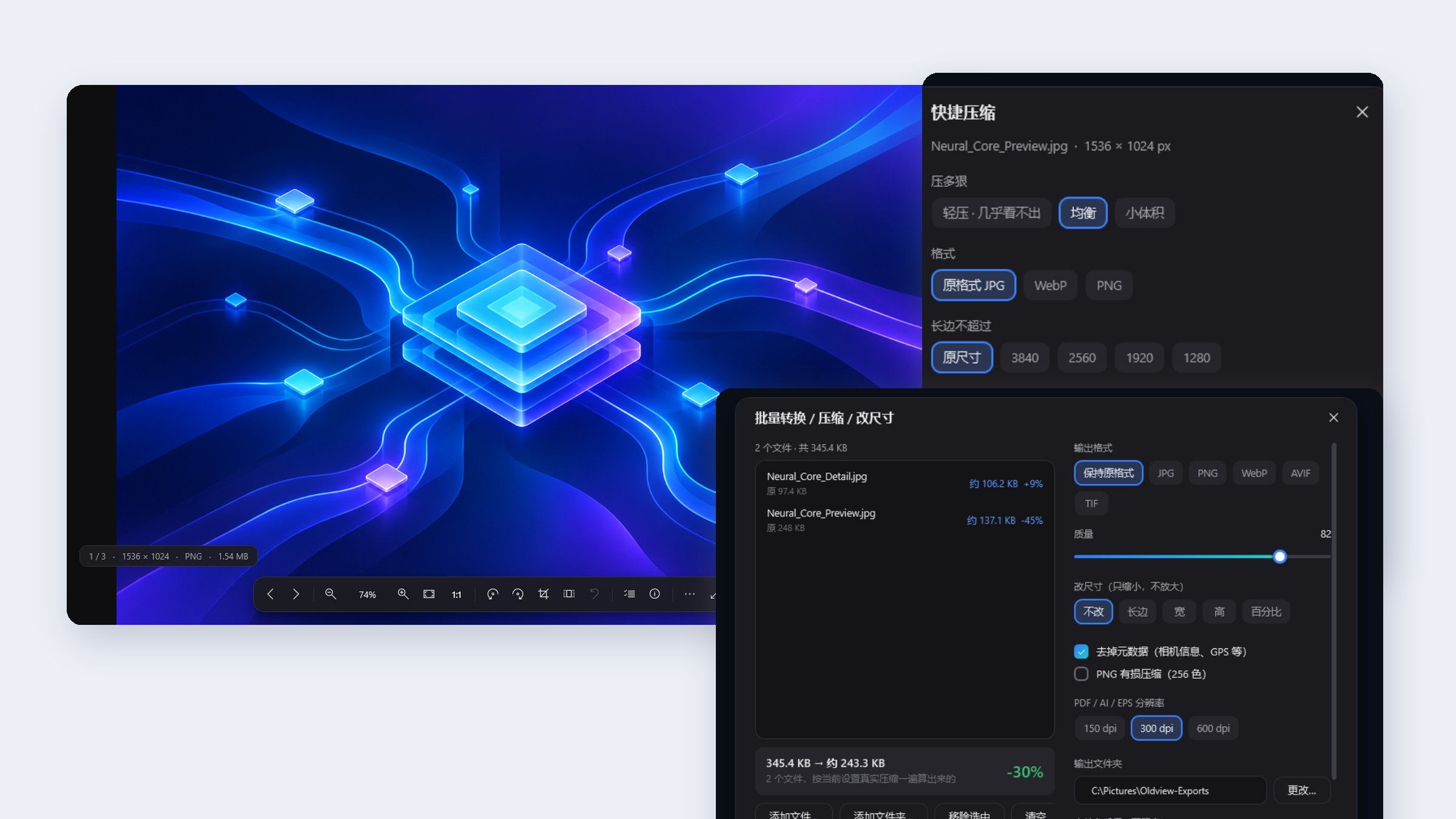
The annoying part of compressing images is finding out afterwards that it's too blurry, or barely smaller. Oldview's Quick compress actually encodes the image with your settings first, then shows you the resulting size.
- Three presets: Light, Balanced and Small.
- Output as JPG, WebP or PNG, cap the long edge, and strip metadata such as camera info and GPS.
- If the result would be bigger than the original, it tells you.
- Crop, rotate, flip and resize can all be undone. When you're done, overwrite the original or save as another format. Read-only formats, animations and multi-page files limit direct overwriting so you don't accidentally lose other frames or pages.
Process a batch with the same settings
Drag in files or a whole folder to compress, convert or shrink them in one go. Before processing, it estimates the size of each file, then you choose an output folder and a file name suffix. If a file with the same name already exists, the new one is numbered automatically and the existing file is kept.
0.4.1 also adds a File Explorer right-click menu. Right-click images to quick-compress them, convert to JPG / PNG / WebP, or shrink the long edge to 2560, 1920 or 1280. Multiple selections are processed together, new files are saved next to the originals with automatic numbering, and the originals are left alone. On Windows 11 it's under "Show more options", and you can turn it off in settings.
Processed on your computer, and error reports ask first
- Images aren't uploaded. Viewing, editing and compression happen on your computer. Image content isn't sent to a server.
- Error reports ask first by default. Local error logs are kept for 14 days. Reports can be set to ask every time, send automatically or never send. A report includes the version, system, error description, call stack and a random anonymous ID, and may include file names or paths. Your Windows user folder name is replaced, and image content is never sent.
- Update checks are counted. An update check records the version, client info and a salted hash of the network identifier, used to estimate active networks. If you turn off automatic checks, normal launches aren't counted.
- How updates work. The installer version can download a new installer from our website and update after verifying its SHA-256. The portable version needs to be downloaded again by hand.
What it can't do yet
- AI files need PDF-compatible content to open. EPS and older PostScript files need Ghostscript installed separately.
- Editing and exporting a PDF/AI works on the current page as an image. Vectors, editable text and the full multi-page structure aren't kept. It isn't a PDF layout, annotation or OCR tool.
- Overwriting doesn't guarantee you can always recover the original from the Recycle Bin. On network drives and USB drives the file may be replaced directly, so save a copy or back up important originals first.
- Forcing it as the default app needs admin rights, affects every account on the computer and takes effect after signing in again. It isn't guaranteed to work on Home editions.
- The portable version doesn't update itself. Important versions may require an update first, and an update requirement already recorded may still apply when you're offline.
Getting started
- Download the installer or the portable version from the Oldview product page. The installer installs for the current user only and doesn't need admin rights.
- To open images with it, set it as the default app on the file associations page in settings. If another app takes the association over, it lets you know and offers a way to restore it.
- There are dark, light and follow-system themes, and you can adjust the viewing background, scroll wheel behavior and animations.
The full format list, limits and changelog are on the product page. If you hit a file it can't open, let us know.